Download the Paragon Connect App
The latest update offers new search features, price change information, and a redesigned Website Links page in Paragon Connect.
Power Search now includes the View (#) Listings and Full Search buttons. Clicking View (#) Listings previews up to ten relevant listings. Clicking Full Search opens the full results page with every match relevant to your search.
The EasyListing feature can auto-fill the listing form with comprehensive property address data.
To add a new listing, open the listing input page and click Add. Select EasyListing.
Select the property type and enter the property address. If applicable, click on a matching previous listing to launch a new listing input page.
Review the pre-populated fields and enter any missing listing information.
The Customize dialog box now matches the column arrangement of your live grid.
Identify price changes with color, underline, and direction arrows. Click Price Change to open a dialog box with the listing address, current price, and a summary of the increase or reduction.
Website Links now show Agent, Office, and System links in a single searchable list.
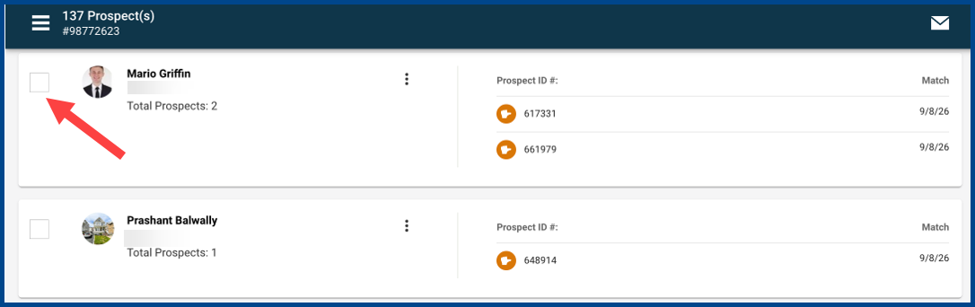
Agent cards now include checkboxes for selecting multiple contacts at once.
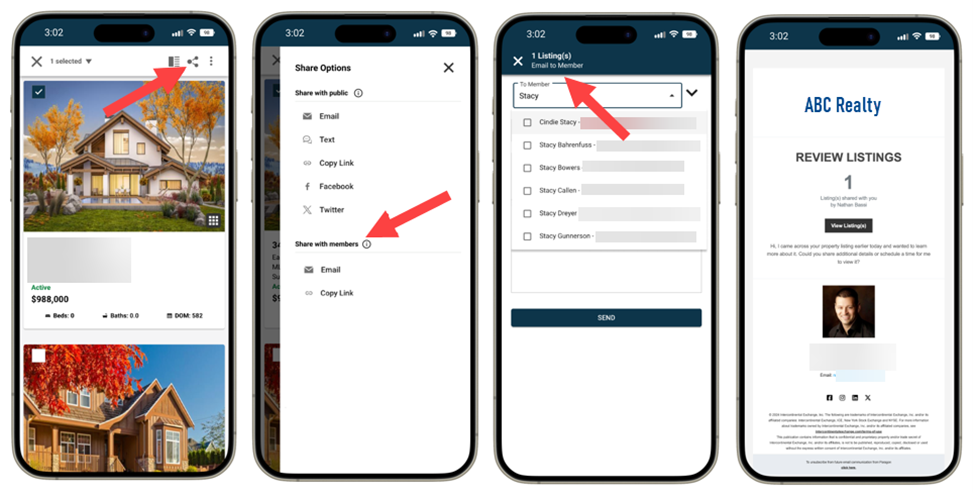
Text messages for a single listing now include the street address before the URL.
Read Paragon's Knowledgebase article for a full list of recent updates
CRMLS offers a variety of resources to educate you on our products and services. Click above to visit the CRMLS training center.
If you need MLS support, please click below or call (800) 925-1525
Your listing data is safe, clean, and accurate. Click below to chat live with a CRMLS Compliance representative.